
Fix ModuleNotFoundError: No module named google.cloud.bigquery (Step-by-Step Guide)
Learn how to fix ModuleNotFoundError no module named google.cloud.bigquery in Python. Follow step-by-step solutions for virtual environments, Jupyter, VS Code, and Docker with clear debugging tips.
How to Fix “ModuleNotFoundError: No module named google.cloud.bigquery” in Python
Introduction
If you see the error "ModuleNotFoundError: No module named google.cloud.bigquery" it means Python fails to find the BigQuery client library in your environment. This python error appears during development, in Jupyter Notebook, inside Docker, or in production systems.
This guide article will give you clear steps to fix the error across environments. You will learn the root cause, the correct installation process, and how to verify your setup.
What This Error Means
Python imports modules from paths listed in sys.path. When the BigQuery package is missing or installed in a different environment, Python fails to locate it.
This error often points to this issues:
- Missing package installation
- Wrong Python interpreter
- Broken environment setup
Common Causes of the Error
1 .Package Not Installed
The BigQuery client library is not present in your environment. You have to get the correct package and install it using pip install command.
2. Wrong Python Interpreter
You install the package using one Python version and run code with another. So make sure you use the same python interpreter version.
3. Virtual Environment Mismatch
You activate one environment but install packages in another.
4. Namespace Conflict
Installing a package named google breaks imports for google.cloud.
5. pip vs pip3 Issue
You might have used **pip installs **packages for Python 2 while your project uses Python 3.
Quick Fix for Most Users
Follow these steps in order to fix your "modulenotfounderror: no module named 'google'" error .
Step 1: Install the Correct Package
Run:
pip install google-cloud-bigquery
Step 2: Upgrade pip
Outdated pip fails to install dependencies correctly.
pip install --upgrade pip
Step 3: Verify Installation
Run:
pip show google-cloud-bigquery
If no output appears, installation failed.
Advanced Debugging Steps
If the above steps didn't fix your error, you might have to dig a bit in your system environment. Follow the steps given below:
Check Python Version
Run:
python --version
Ensure the version matches your project.
Check pip Location
Run:
which pip
or on Windows:
where pip
Confirm pip points to the same Python installation.
Inspect sys.path
Run inside Python:
import sys
print(sys.path)
Ensure your site-packages directory appears in the list.
List Installed Packages
Run:
pip list
Check if google-cloud-bigquery exists.
Fix Based on Your Environment
Fix in Virtual Environment
If you are using a python environment, make sure the environment is activated first.
Activate your environment first:
source venv/bin/activate
In windows:
.\venv\Scripts\activate
Then install:
pip install google-cloud-bigquery
Its better to install all the packages in the same environment of the project so that it wont conflict with the global environment.
Fix in Jupyter Notebook
Jupyter often uses a different kernel.
Run inside a cell:
!pip install google-cloud-bigquery
Then restart the kernel.
Fix in VS Code
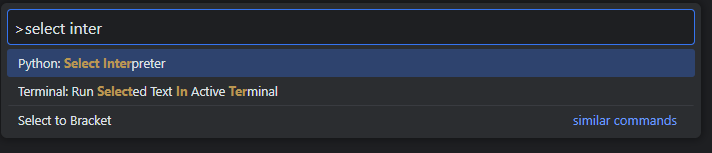
In VS Code the “python module import error” can occur because of mismatched python interpreter selection. To fix it follow the steps below:
Steps:
- Open Command Palette by pressing Ctrl+Shift+P .
- Select or Type Python: Select Interpreter
- Choose the correct environment
- Reinstall the package if needed
Fix in Docker
If you are having issues with in docker, follow the steps below:
Ensure your Docker file includes:
RUN pip install google-cloud-bigquery
Then rebuild the container:
docker build -t your-image .
Fix in Windows and Linux
Use explicit Python commands:
python -m pip install google-cloud-bigquery
This avoids interpreter mismatch.
Fix Namespace Conflict with google Package
Many users install a package named google. This breaks imports.
Step 1: Remove Conflicting Packages
pip uninstall google
Step 2: Reinstall Correct Package
pip install google-cloud-bigquery
Step 3: Verify Import
Run:
from google.cloud import bigquery
If no error appears, the issue is resolved.
Correct Installation Workflow
Follow this sequence for clean setup:
- Create a virtual environment
- Activate the environment
- Upgrade pip
- Install google-cloud-bigquery
- Verify installation
Example:
python -m venv venv
source venv/bin/activate
pip install --upgrade pip
pip install google-cloud-bigquery
Verify Everything Works
Run this test script:
from google.cloud import bigquery
client = bigquery.Client()
print("BigQuery client loaded successfully")
Expected result:
BigQuery client loaded successfully
Real-World Scenarios
| Scenario | Common Cause | Recommended Fix |
|---|---|---|
| Production Server | Missing dependency in deployment | Add google-cloud-bigquery to requirements.txt and redeploy. |
| CI/CD Pipeline | Dependencies not installed in build step | Add installation step in pipeline configuration. |
| After Deployment | Environment differs from local setup | Match Python version and dependencies with the local environment. |
Troubleshooting Checklist
Use this list to find the issue fast:
- Confirm package installation
- Check Python version
- Match pip and python paths
- Activate correct environment
- Remove conflicting google package
- Restart IDE or kernel
- Reinstall dependencies
FAQs
1. Why does pip install not fix the error?
This might be because you installed the package in a different environment than the one running your code. So make sure that you have choose the correct project environment of the project.
2. Why does the error appear in Jupyter but not in terminal?
The Jupyter Notebook uses a separate kernel with its own environment.
3. Why does VS Code not detect the module?
VS Code uses a different interpreter. Select the correct one from the command Palette by pressing Ctrl+Shift+P and typing **Python: Select Interpreter **
4. What is sys.path?
The sys.path is a list of directories where Python searches for modules.
Key Takeaways
- Install google-cloud-bigquery in the correct environment
- Avoid installing the google package
- Always verify your Python interpreter
- Use `python -m pip` to prevent path issues
Follow these steps and your import error will be resolved.
Related Posts
How to merge JSON files in python
Learn different techniques to merge multiple JSON files in Python using built-in JSON module and Pandas library. Includes examples for combining data arrays and merging dictionaries by key.
Pytube Description and Keyword Not Showing: Solution
Solve the issue with Pytube not showing youtube description and tags in this article.
How to Fix the subprocess-exited-with-error in Python
Learn what cause the subprocess-exited-with-error in Python and also learn how to solve the error in your code.
Python Integer Division: The Floor Division Operator Explained
Article on Python Integer Division operator (//) with examples and the difference between standard division and floor division.